




A LinkedIn Profile Is Two Layers of Sections
Most people open their profile, feel that something good is buried, and start dragging. Nothing moves, and they decide LinkedIn is broken. It isn’t broken. It’s layered. You’re usually trying to move something LinkedIn has pinned.
Here’s what actually moves, what genuinely cannot, and the order that does the work.
Strong profiles bury their best work under the fold. The sections decide what a stranger can find at all. The order decides what they find first.
How to Add a Section
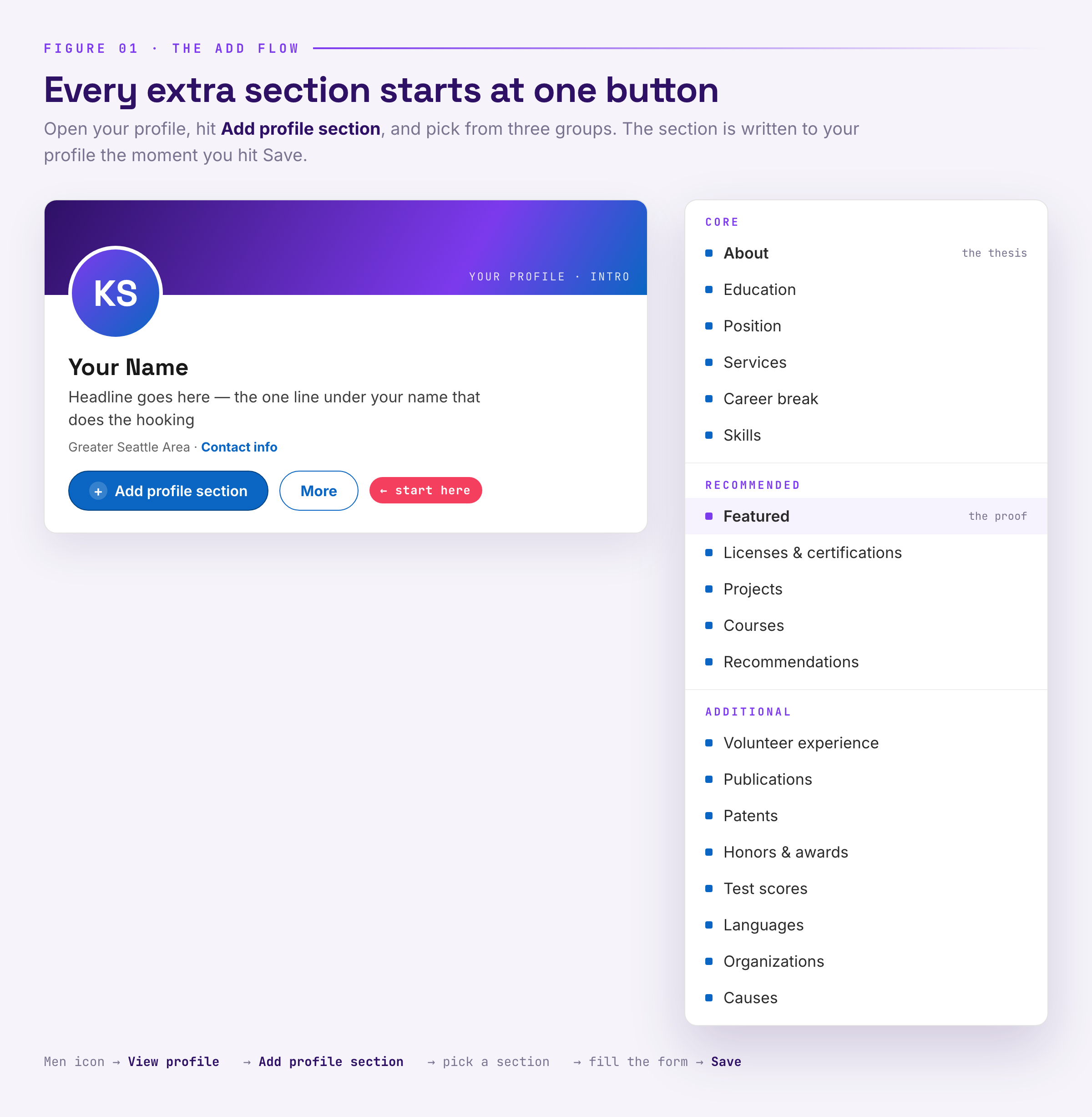
Adding a section takes four steps, and it always starts in the same place. LinkedIn keeps every available section behind one button in your intro area, and it sorts them into three groups.
-
1Open your profileGo to your own profile. The control you need lives in the intro card at the top, the block with your photo, name, and headline.
-
2Click Add profile sectionA dropdown opens with three groups: Core, Recommended, and Additional. Every section LinkedIn offers you is in one of them.
-
3Pick from the right groupCore holds About, Education, Position, Services, Career break, and Skills. Recommended holds Featured, Licenses & certifications, Projects, Courses, and Recommendations. Additional holds Volunteer experience, Publications, Patents, Honors & awards, Test scores, Languages, Organizations, and Causes.
-
4Fill the form and SaveSave writes it to your profile immediately, and it appears in the stack below your intro. You can edit or remove it later from the same section header.
How to Reorder Your Sections
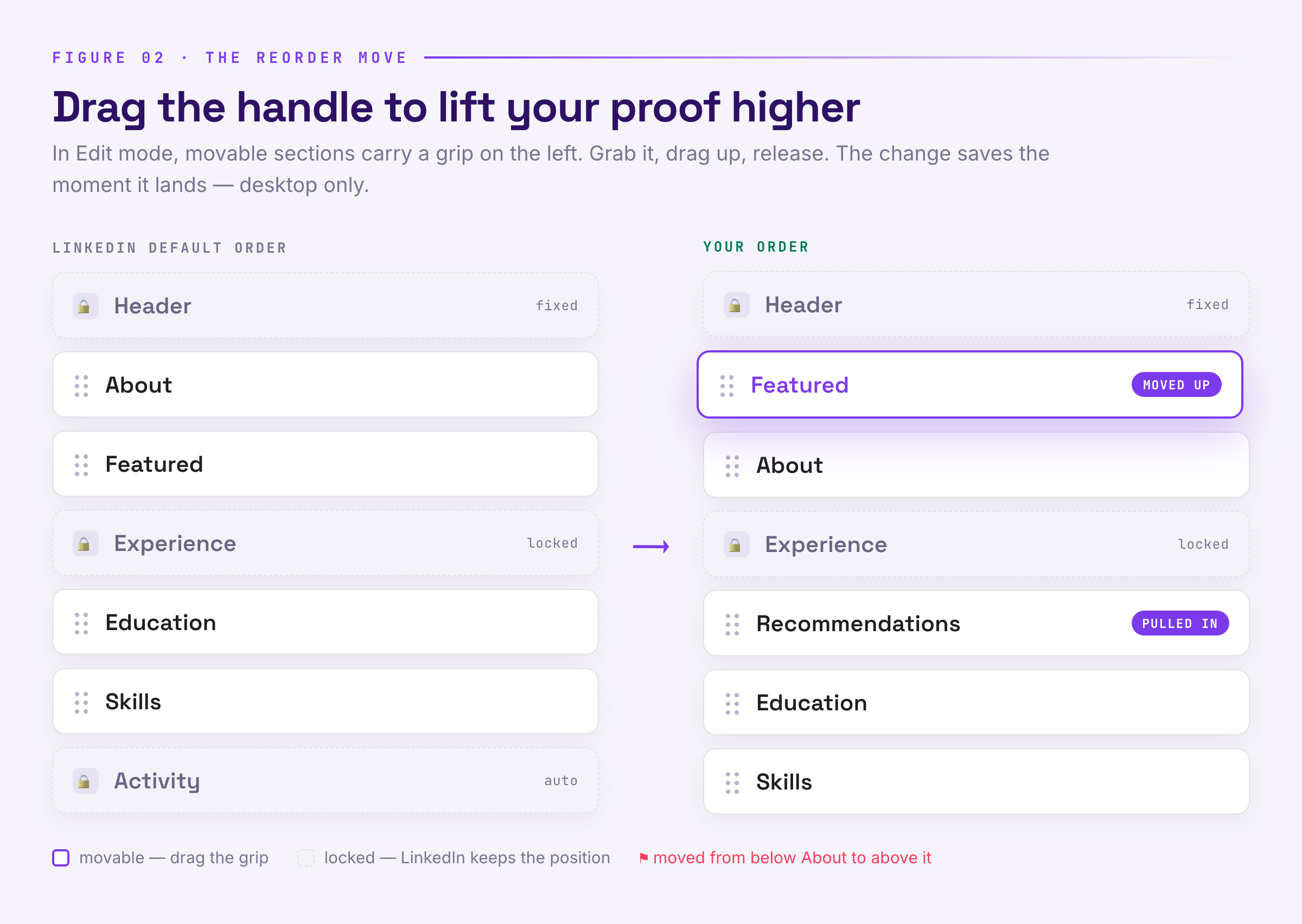
Reordering has two layers, and the layer everyone wants is the layer LinkedIn restricts most. LinkedIn doesn’t hand you a free drag-and-drop for every section on the page. In desktop edit mode, the movable sections carry a grip handle on the left that you can grab and drag up or down. The header, Experience, Education, and Activity do not move. They’re pinned, because LinkedIn treats them as structural.
Drag behavior varies by desktop layout, and it does not exist on mobile at all. The reliable play: reorder what you can drag, and reshape the rest by controlling what you add or remove around it. If proof sits below the fold, the fix is usually not moving an old section but pulling a new one—like Featured—into the movable mid-stack.
Reordering Inside a Section
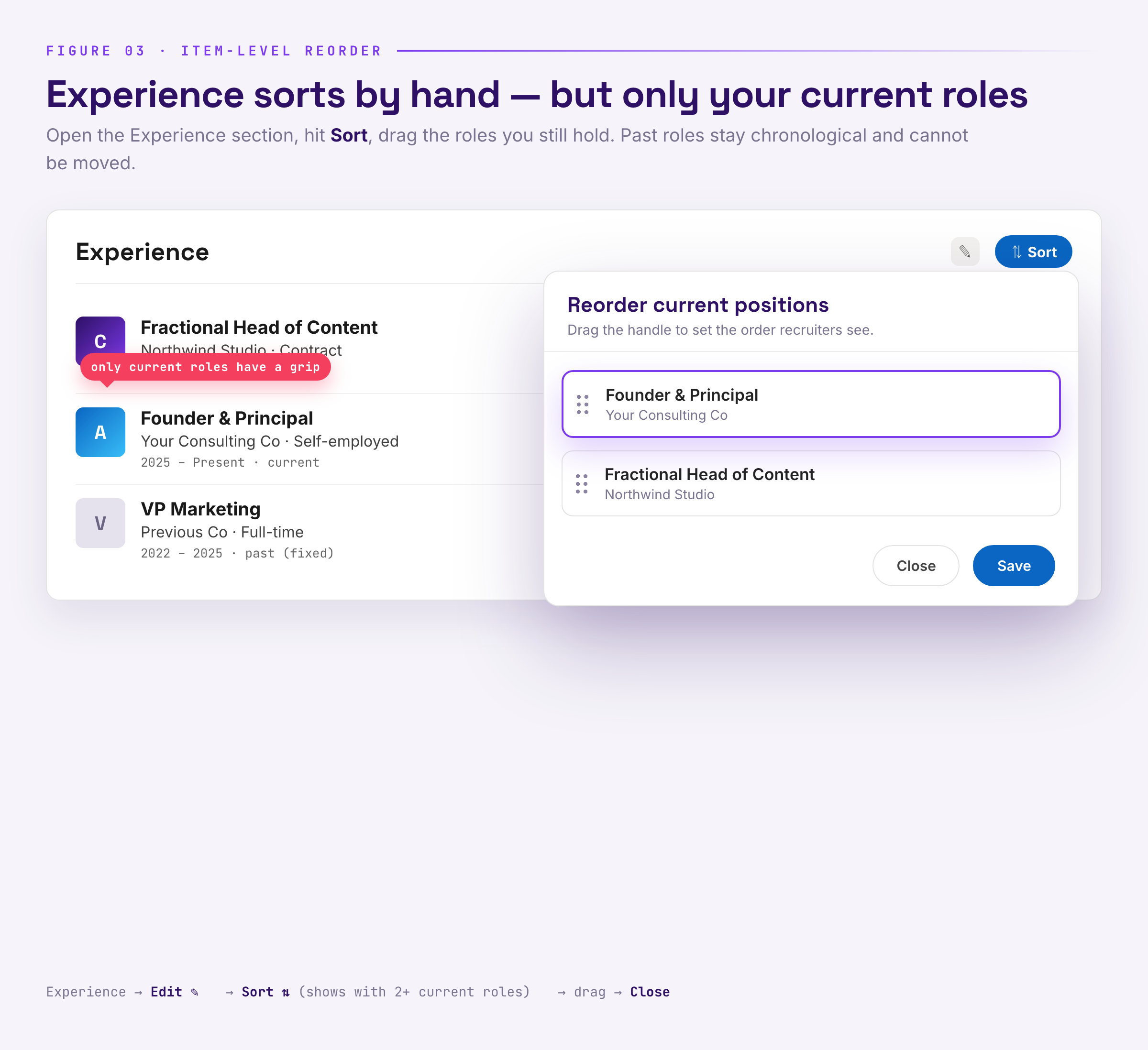
Inside Experience the rule is specific, and it is worth knowing. You can reorder the positions you currently hold. That matters when you run two roles and want the relevant one on top. You cannot reorder past roles; those stay chronological and are fixed in place.
-
1Open Experience and hit EditOn your profile, go to the Experience section and click the pencil icon.
-
2Click SortThe Sort control only appears once you have two or more current positions, meaning roles with no end date.
-
3Drag your current roles into orderOnly current roles carry a drag handle. Past roles stay put.
-
4Close and checkThe new order saves immediately. Open your profile in a logged-out window to see it the way a stranger does.
The same logic applies elsewhere. You can reorder the pins inside Featured, and inside Skills you can pin the three you most want read first.
What Moves and What Is Locked
Before planning a reorder, know which sections push back. Here’s the honest map we use.
The Right Order Depends on Who You Want
Order isn’t decoration. It’s a claim about what matters to you. A stranger reads the first three sections of your profile before deciding whether to keep reading, so those three should point at the job you want next, not the job you had.

One rule we use: would a stranger know what you do in ten seconds? If not, the top of your profile is working against you.
What Belongs in Featured
Featured is the highest-value section most profiles never add, because it’s the only place you can pin files, links, media, and posts as visual proof. Treat it like a storefront window, not a folder. Pin three to five items. Make each one answer a question a buyer would actually ask.
Our rule: pins are artifacts, not adjectives. A case study, a teardown, a talk, a deck, a post that did numbers. If you want one clean asset to pin, build a one-page case study in Gamma and pin the link. A slide-style document reads faster than a PDF, and it signals that you build things, not just describe them.
When to Hide Instead of Delete
You have two ways to get a section out of the way: remove it, or keep it and change who can see it. Removing is for sections you’ll never need. Hiding is for sections that matter to some visitors and not others. A Volunteer section can stay visible to your connections and out of your public profile. We’d rather hide a section than delete one we might want back. Your profile isn’t a resume with a photo on top. It’s a page that argues, and the order is the argument.
Once the profile works, the rest of LinkedIn compounds. The same discipline that orders your sections orders your feed: the right format for the right idea in LinkedIn articles vs posts, a rhythm you can actually hold in posting cadence, and when to use each format in our images vs video breakdown.